
Software Forged
for Your Business
We build bespoke software solutions that replace failing ERPs, streamline operations, and grow with your business. Trusted by Australian companies.
Solutions That Drive
Real Results
Custom Software Development
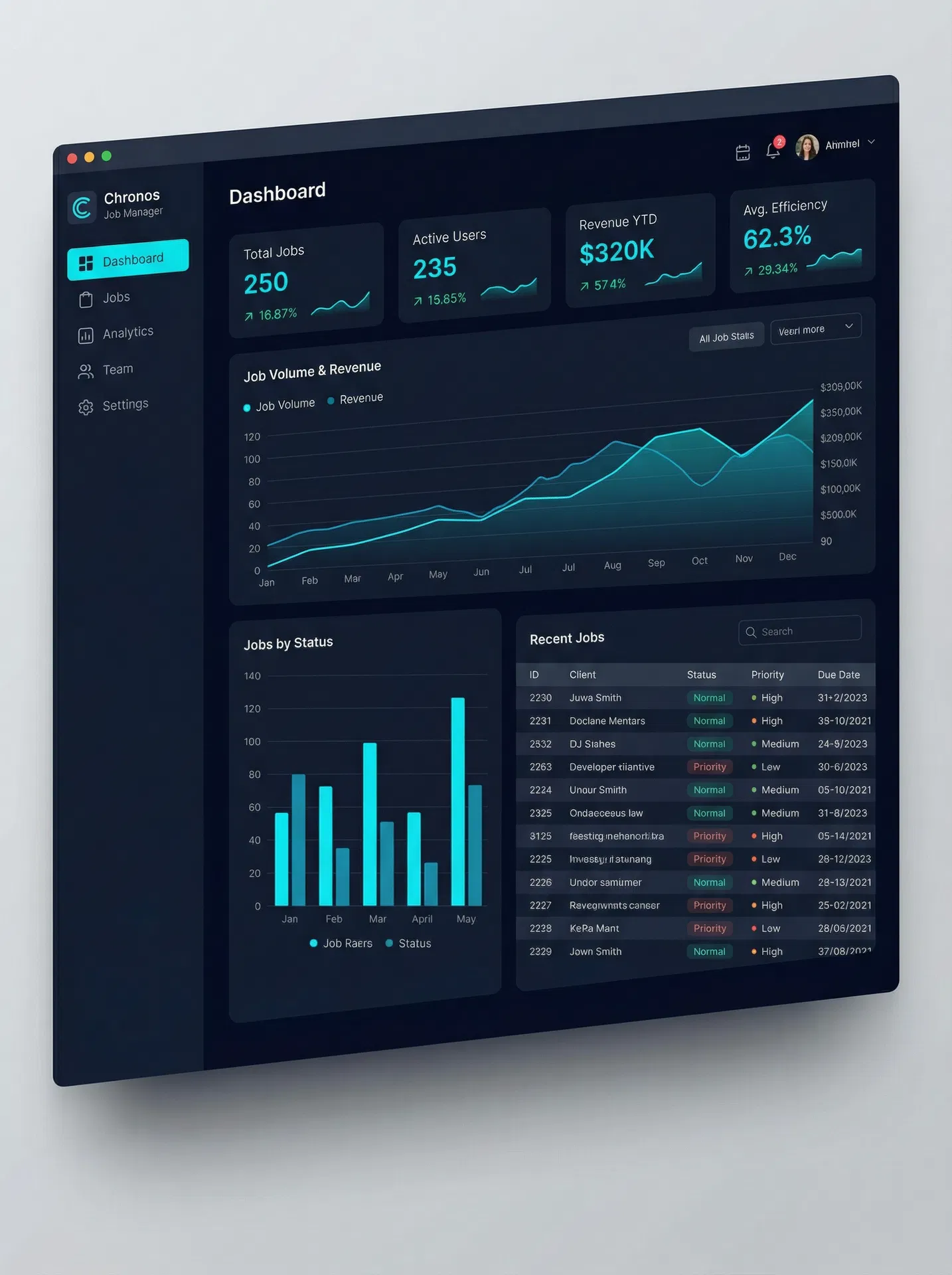
Purpose-built applications designed around your exact workflows. From job management systems to field data capture tools, we build software that fits like a glove.
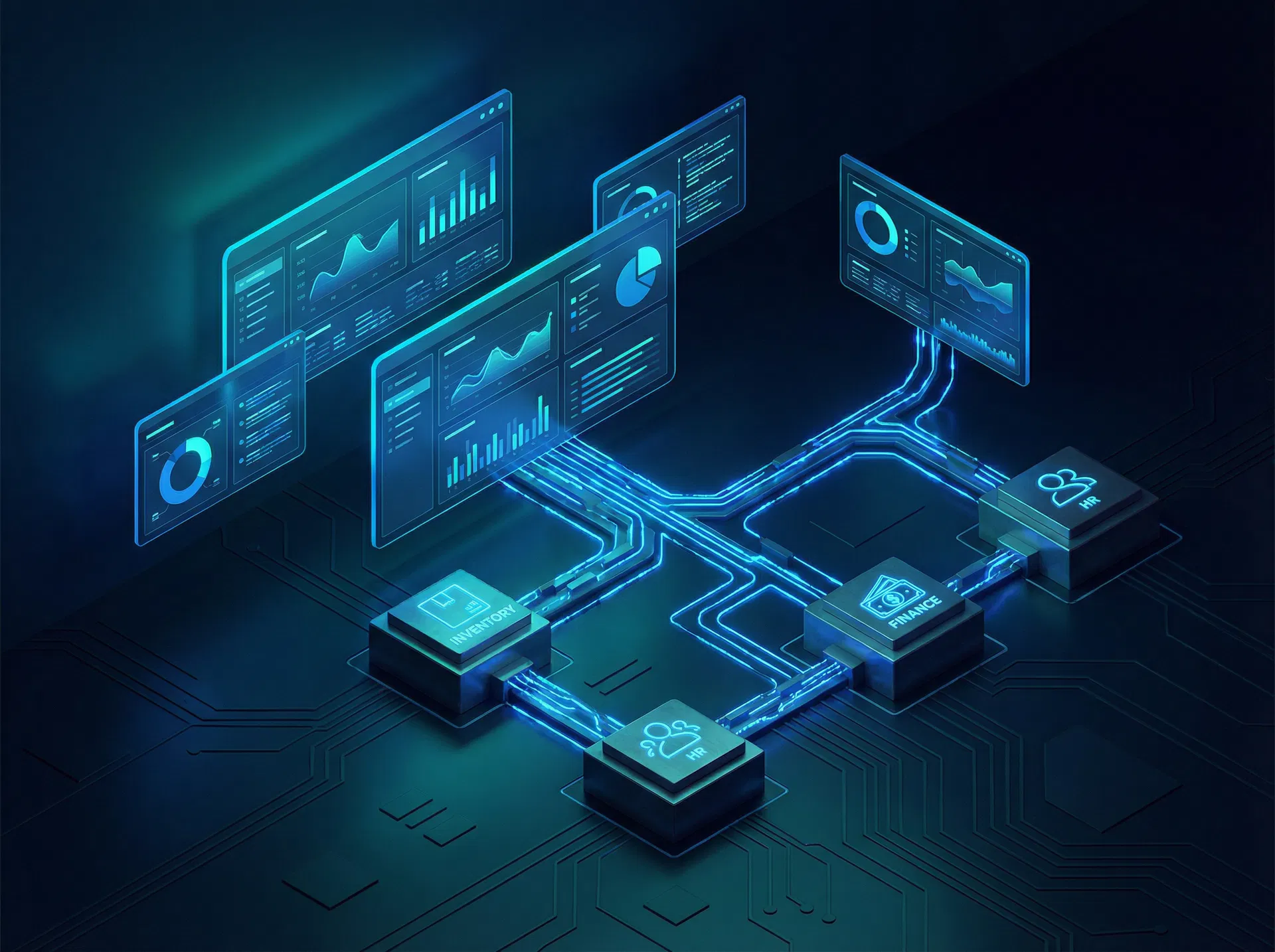
ERP Solutions & Replacement
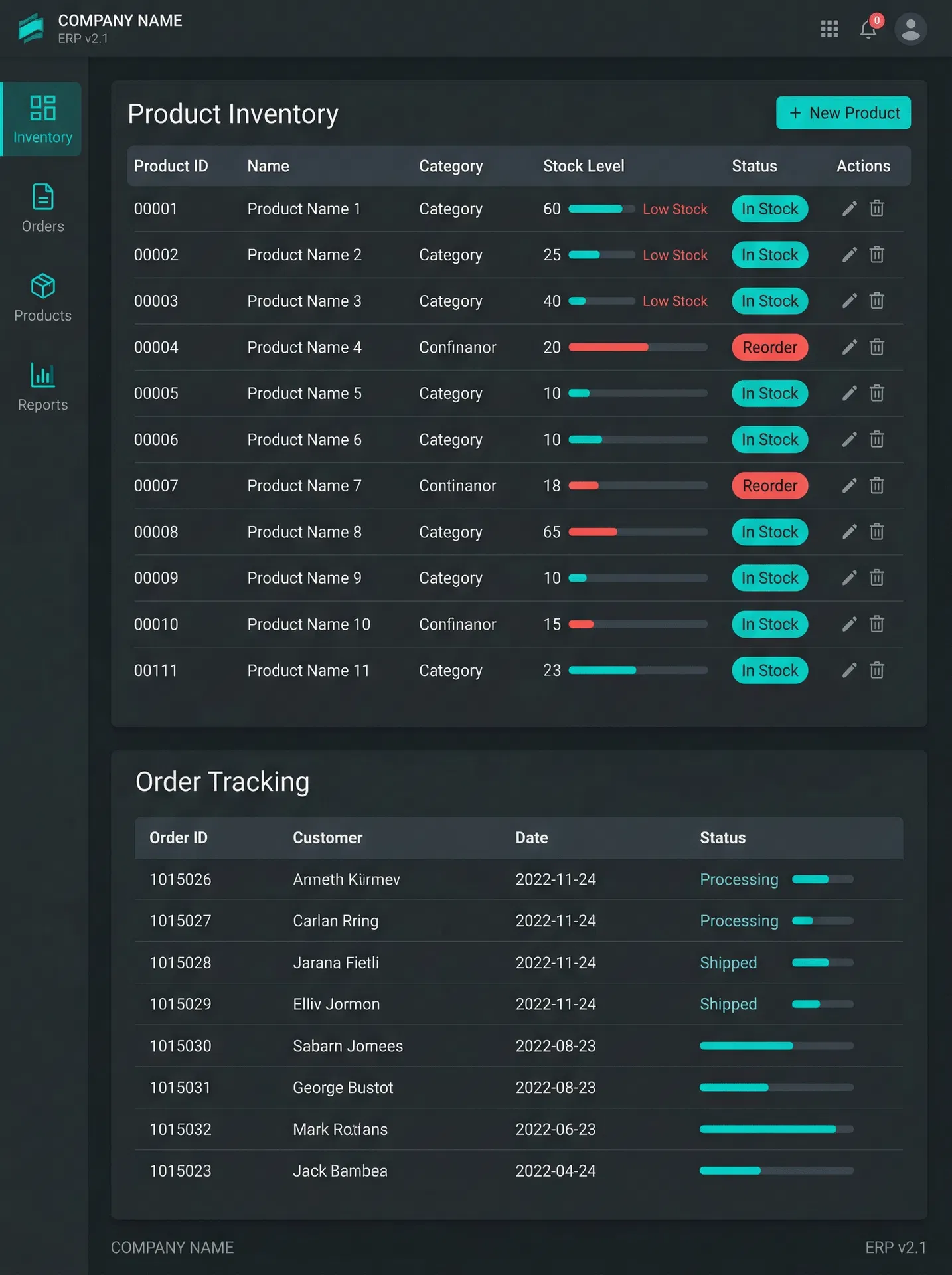
Outgrown your current system? We design and build modern ERP replacements that consolidate your operations into a single, intuitive platform.
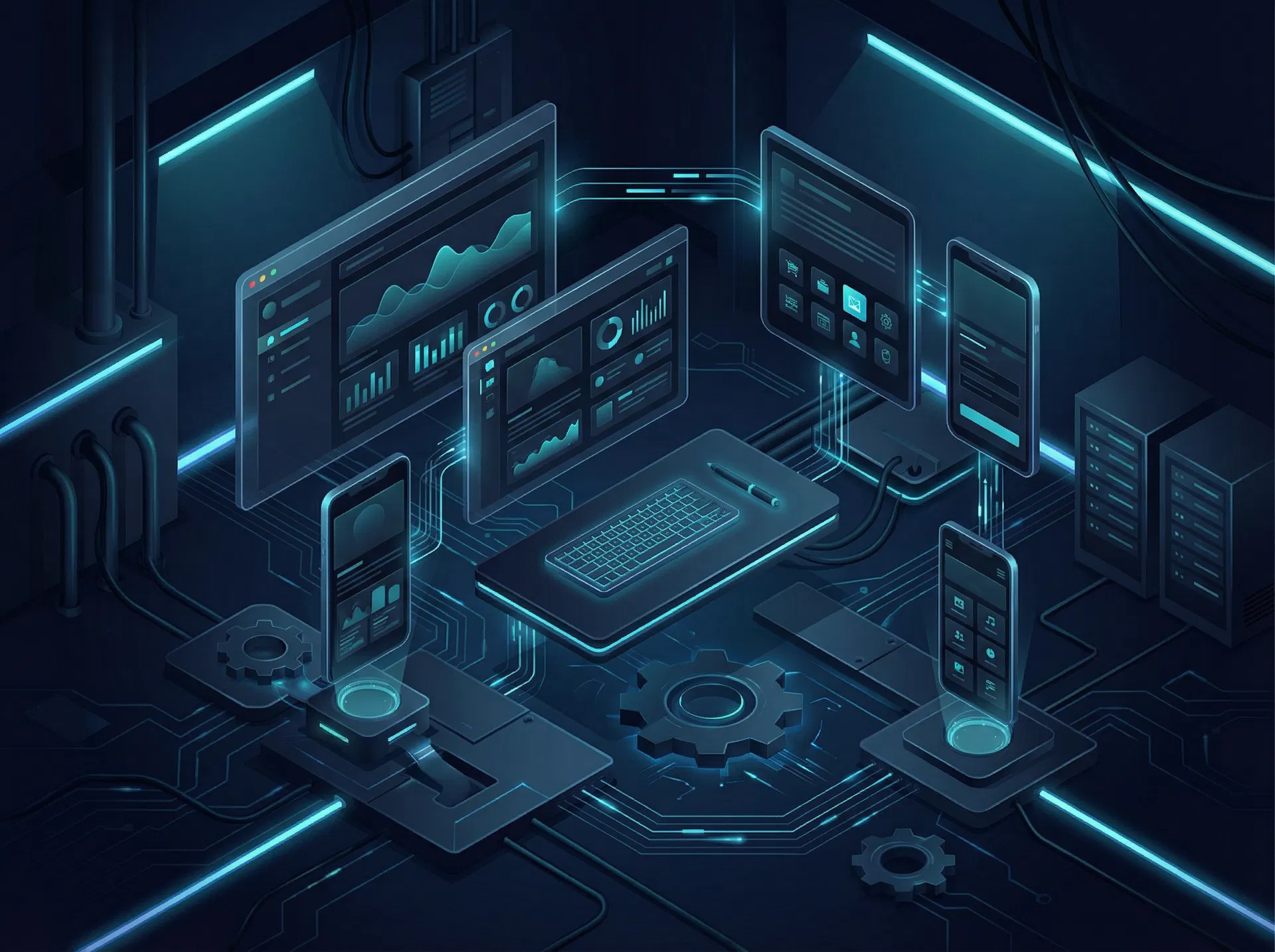
Web Applications
Responsive, high-performance web apps that work across all devices. Built with modern frameworks for speed and reliability.
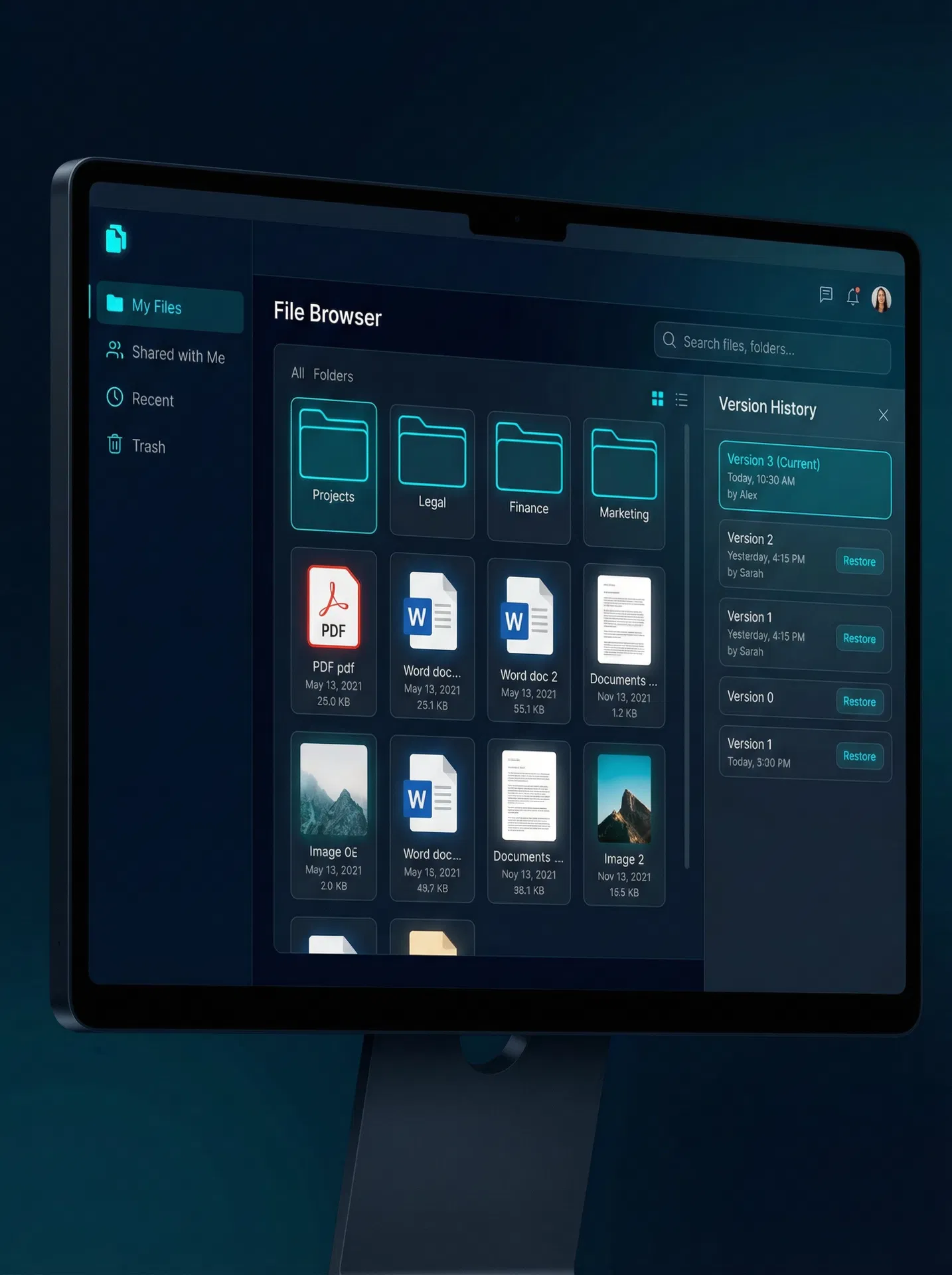
Document Management
Digitise and automate your document workflows. Version control, approval chains, and compliance tracking built in.
Content Management
Custom CMS solutions that give your team full control over website content without technical knowledge.
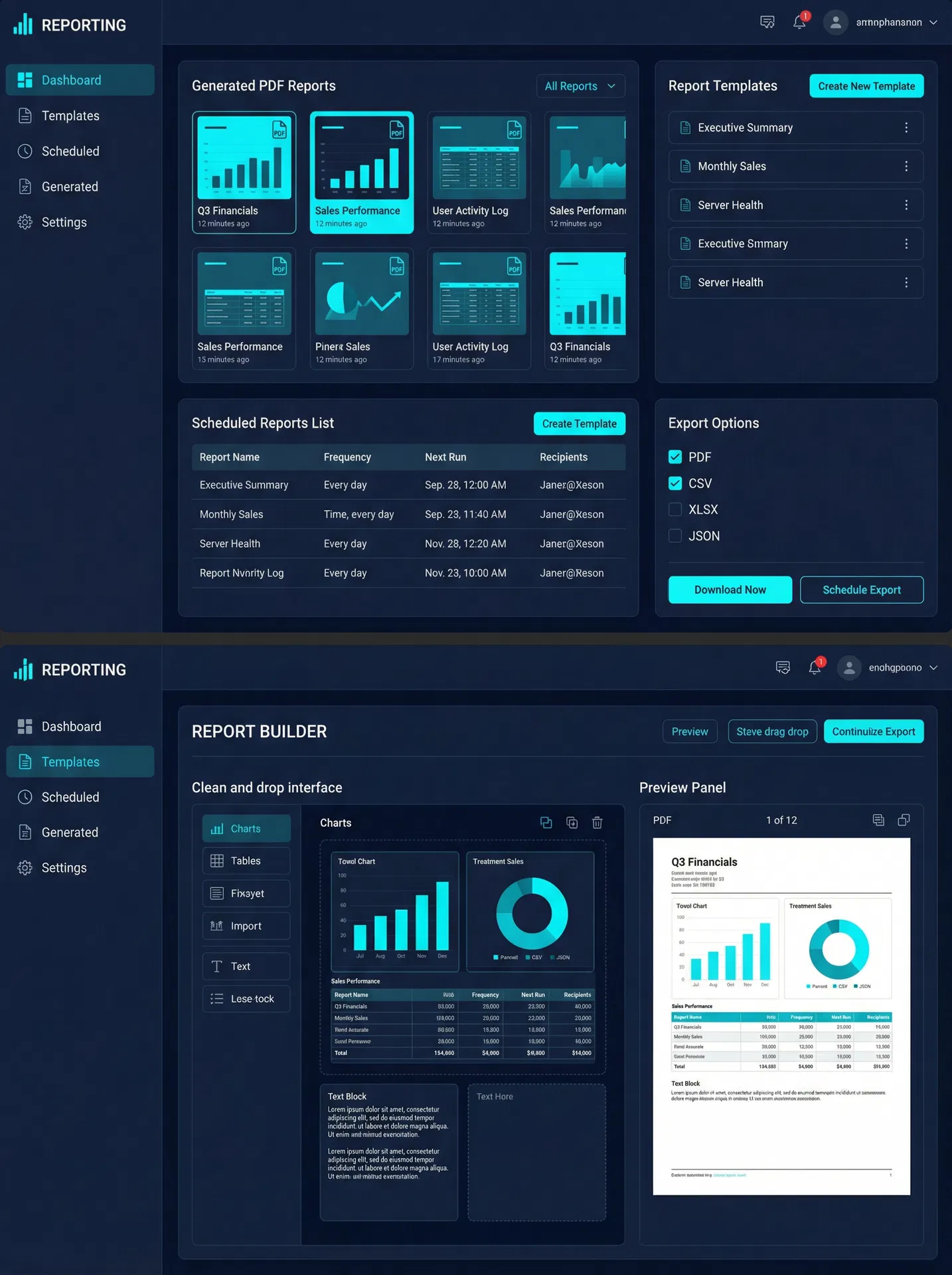
Business Intelligence
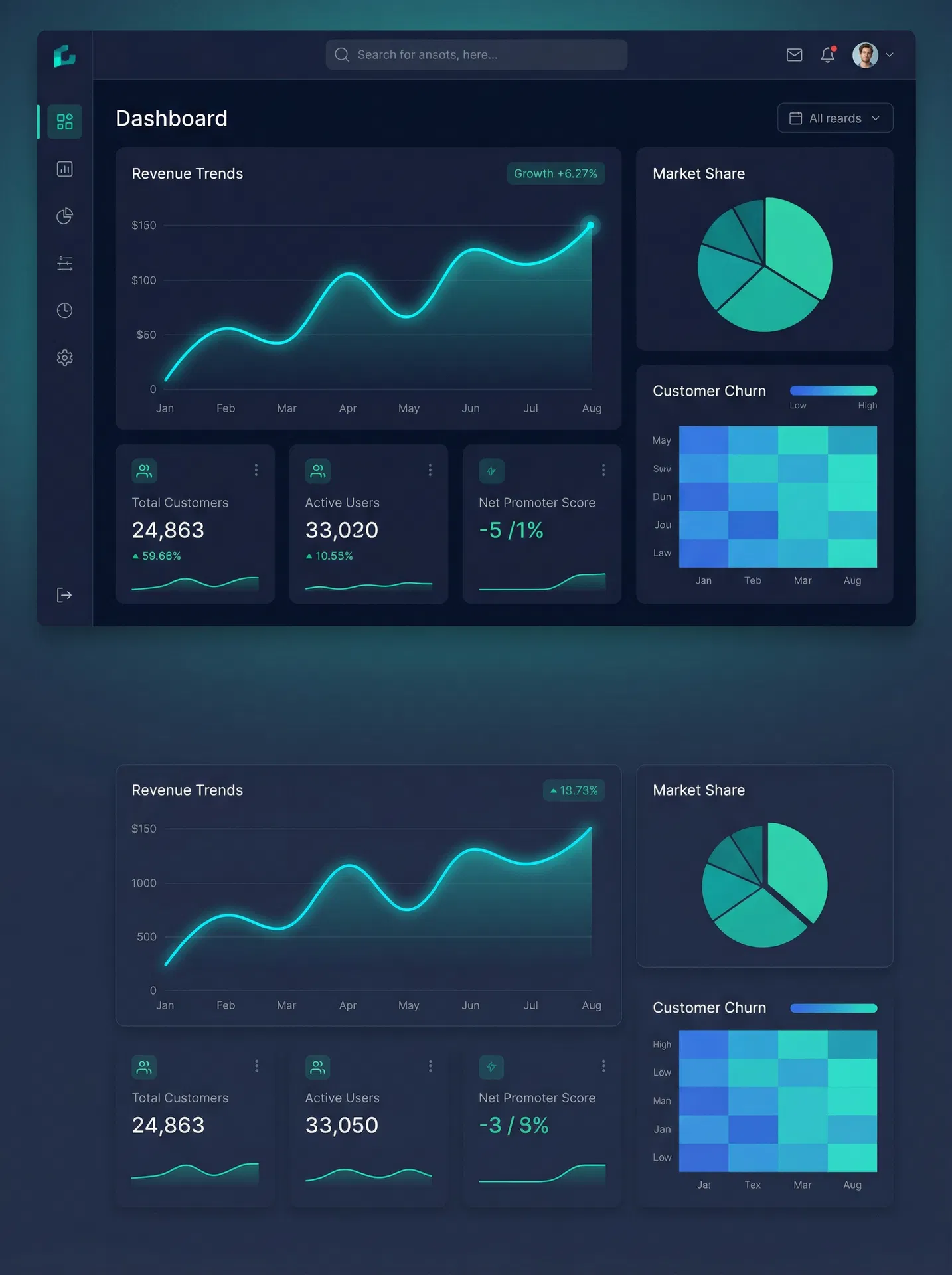
Transform your data into actionable insights with custom dashboards and reporting tools.
Operational Problems We Solve
We specialise in the operational bottlenecks that generic software can't fix — the workflow problems specific to businesses that coordinate field teams, process high email volumes, and manage complex multi-stage jobs.
Email Overload
Hundreds of operational emails per day consuming admin time that could be automated.
Manual Admin
Staff re-entering data between systems, manually processing requests that follow predictable patterns.
Workflow Delays
Jobs waiting hours or days for scheduling, approvals, or status updates that should take seconds.
Double Handling
Information entered into one system then manually re-entered into another — every time.
Scheduling Bottlenecks
Manual scheduling that can't keep up with volume, causing conflicts and customer frustration.
Disconnected Systems
Field teams, office staff, and customers using different tools with no real-time connection between them.
Industries We Serve
We work with operational businesses that coordinate people, process requests, and manage complex workflows. Our experience spans industries where the work is real, the deadlines are tight, and generic software doesn't cut it.
Surveying
Order intake, site registration, crew scheduling, and delivery workflows.
Installers & Trades
Multi-stage job management, mobile workforce, and customer communication.
Field Services
Real-time coordination between field crews and office operations.
Operational Businesses
Any business processing high volumes of operational requests via email.
Workflow Automation in Action
These aren't theoretical examples. They're real operational sequences running in production for Australian businesses right now.
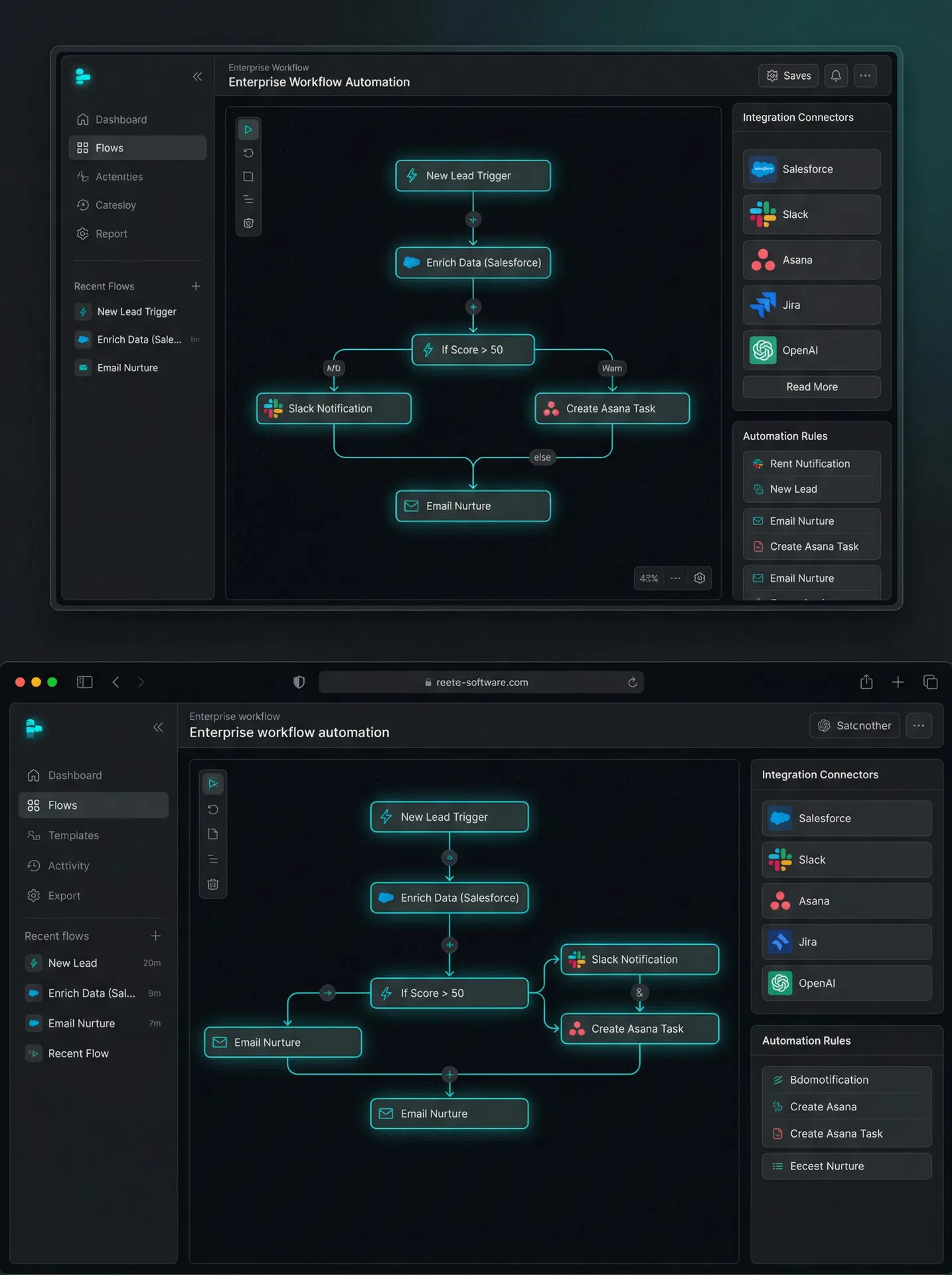
Email → ERP → Customer Response
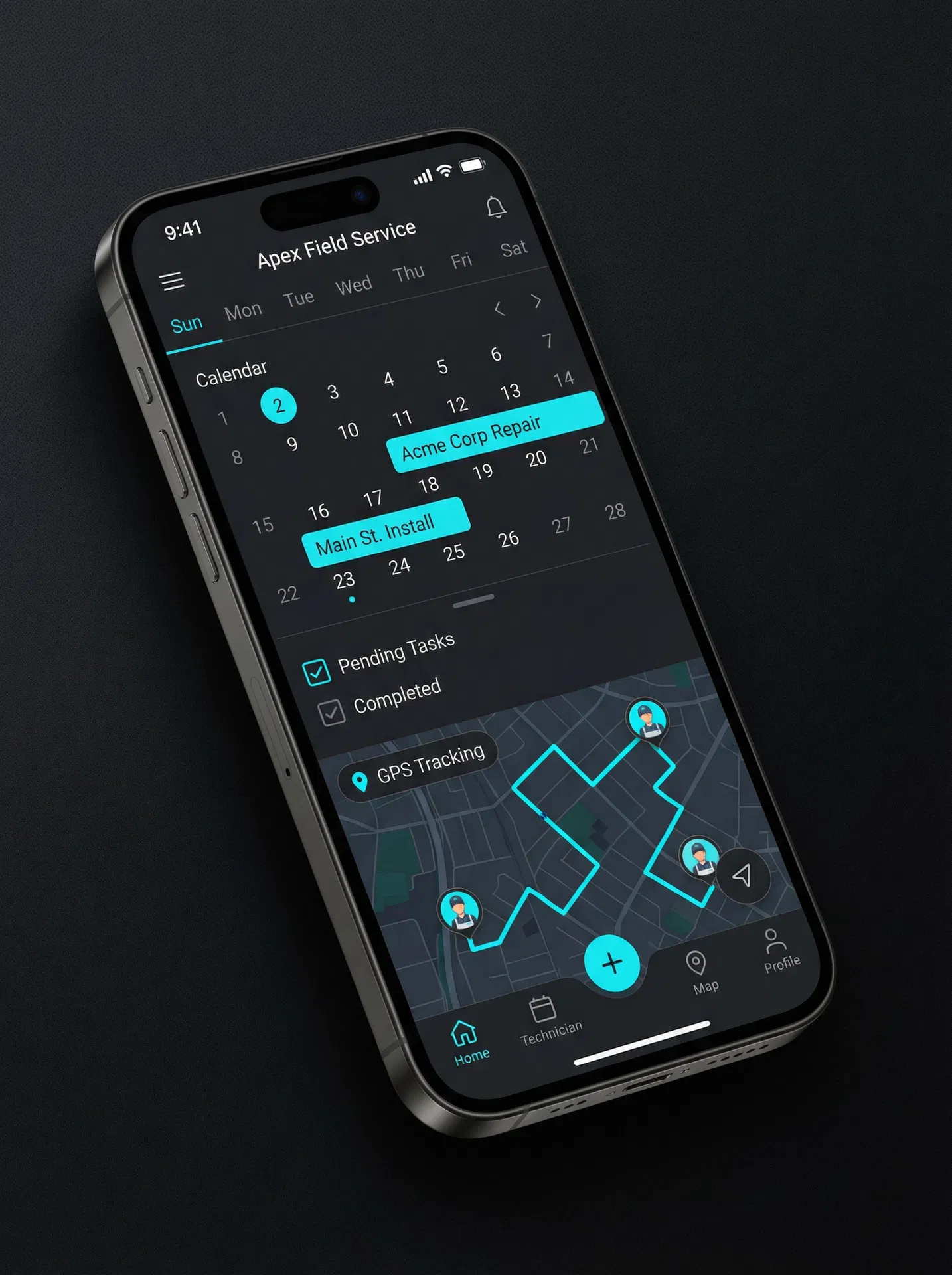
Order → Schedule → Field → Complete
Enquiry → Database → Reply
Your Dedicated
Software Partner
Bissano is a boutique custom software development firm built on the belief that the best software comes from deep understanding of your business. We work closely with each client, embedding ourselves in your operations to deliver solutions that genuinely transform how you work.
Small Team, Big Impact
As a focused team, you work directly with the people who build your software. No account managers, no handoffs, no miscommunication.
Long-Term Partnerships
Our longest client relationship spans over a decade. We don't just build and leave — we become an extension of your team.
Agile & Responsive
Without layers of bureaucracy, we move fast. Changes, fixes, and new features are delivered on your timeline, not ours.
Australian Owned & Operated
Based in Australia, we understand local business challenges, regulations, and the value of face-to-face collaboration.
Trusted by Businesses
Across Industries
Email Overload & Automation
Business email volume grows ~30% per year. We build intelligent agents that classify, route, and act on your emails — auto-replying, creating tickets, updating systems, and escalating only what needs human attention. The result: 5-6x cost savings while no critical message is ever missed.
Surveying & Field Services
Built and continuously evolved a comprehensive job management and field data system for a leading surveying firm. The platform handles everything from job scheduling and field data capture to invoicing and reporting — replacing multiple disconnected tools with a single, unified solution.
Industrial Manufacturing
Developed custom operational software for a specialist industrial tools company, streamlining their unique manufacturing workflows and customer management processes.
Business Services
Delivering tailored software solutions that support day-to-day operational requirements, with a focus on reliability and ease of use for the team.
Engineering Compliance
Built a document management system for an engineering compliance firm, enabling their team to organise, track, and manage compliance documentation with full version control and audit trails.
Retail & Distribution
Developed a content management system for a retail business, giving their marketing team full control over their digital presence without requiring technical expertise.
Ready to Discuss Your Workflow?
Request a 10-minute workflow review. We'll identify the operational bottlenecks costing your business time and money — and show you what's possible with intelligent automation.
From Idea to
Production
Discovery & Consultation
We start by understanding your business inside and out. What are your pain points? Where are the bottlenecks? What does success look like? This deep-dive ensures we build the right thing, not just any thing.
Free initial consultationAnalysis & Design
We map your workflows, identify opportunities for automation, and design a solution architecture that aligns with your business goals.
Wireframes & prototypes includedIterative Development
We build in short sprints, delivering working software every few weeks. You see progress constantly, provide feedback early, and course-correct without costly rework.
Regular demo & feedback cyclesDeployment & Training
We handle the full deployment — whether it's on your server, cloud infrastructure, or a hybrid setup. Your team gets hands-on training so they're confident from day one.
IIS, cloud, or hybrid deploymentOngoing Support & Evolution
Software is never truly 'done'. We provide ongoing support, maintenance, and feature development as your business grows and your needs evolve.
Long-term partnership modelLet's Build
Something Great
Whether you're looking to replace a failing ERP, automate a manual process, or build something entirely new — we'd love to hear about it. The first conversation is always free.
Not sure where to start? Book a free 30-minute consultation and we'll help you identify the biggest opportunities for improvement in your current systems.